
Huawei Health
Screenshots

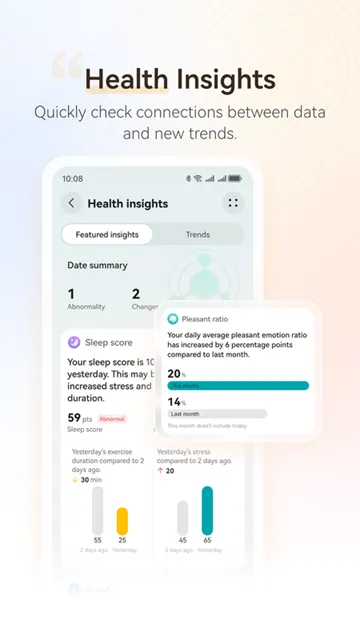
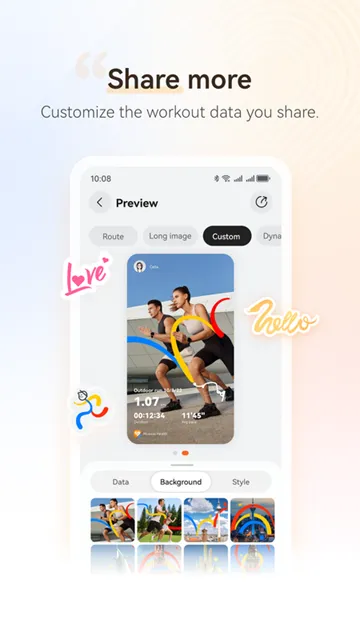
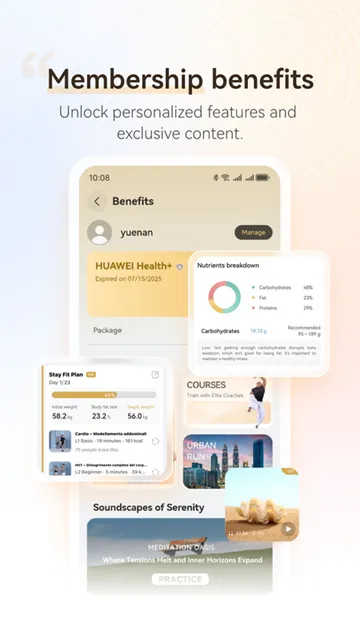
Huawei Health is a powerful app designed to help you track your fitness and wellness. It works as a central hub for all your health data, whether you use a Huawei smartwatch or just your smartphone. This app makes it easy to monitor your daily progress and reach your personal fitness goals.
You can use Huawei Health on almost any Android device to stay active and healthy. It records your movements, analyzes your sleep, and provides deep insights into your heart health. The interface is simple, so you can find exactly what you need without any confusion.
How To Download And Install Huawei Health APK For Android
Staying active is easier with the right app. Huawei Health tracks your steps, sleep, and workouts. However, you might not find it on the Google Play Store. Do not worry. You can still install it on your Android phone.
This guide shows you how. Follow these steps carefully.
Why You Need the APK
Most Android users are used to downloading apps from one specific store. Because of certain restrictions, the most up-to-date version of Huawei Health is often hosted directly by the developer. Downloading the APK file ensures you have the latest features and security updates.
System Requirements
Before you begin, check if your phone is ready.
- Operating System: Android 6.0 or later.
- Storage Space: At least 200 MB of free space.
- Permissions: You must allow “Install from Unknown Sources” in your settings.
Adjust Your Settings
First, you need to prepare your phone. Android blocks app installations from unknown sources by default. You must change this setting.
Here is what you need to do:
- Open your phone’s Settings menu.
- Tap on Security or Privacy.
- Look for the option Install from unknown apps.
- Select your browser or file manager app.
- Toggle the switch to Allow.
Consequently, your phone can now install APK files. This step is essential. Do not skip it.
How to Download the Huawei Health APK
Next, you need the correct APK file. Only download from trustworthy places. This protects your data.
To get the file:
- Open your preferred web browser.
- Visit Filetomob.com.
- Type “Huawei Health APK Download” into the search bar.
- Navigate to the Download page.
- Find the download APK button for the most recent version.
- Tap Download. The file will save to your phone’s storage.
Important: Wait for the download to finish fully. Do not interrupt the process.
Step-by-Step Installation Guide
Now, you have the APK file. Let us install it. The process takes less than one minute.
Follow these simple steps:
- Open your Downloads folder. You can use the “Files” or “My Files” app.
- Locate the file named HuaweiHealth.apk.
- Tap on the file once.
- A pop-up window will appear. It may ask for confirmation again. Tap Install.
- Watch the installation progress bar. It moves quickly.
- Finally, tap Open to launch the app.
That is it. The app icon will also appear on your home screen.
What to Do If the App Won’t Install
Sometimes, you might face an error. For example, the phone might say “App not installed.” Do not panic.
Here are common fixes:
- Free up space: Delete old photos or unused apps. Then try again.
- Check the file: The APK might be corrupt. Download it a second time.
- Restart your phone: This clears temporary glitches.
- Enable permissions: Go back to Settings and double-check “unknown sources.”
In most cases, restarting your phone solves the problem.
Keep Your App Updated
Since you didn’t use a traditional store, the app might not update automatically. Open the Huawei Health app regularly. Go to Me > Check for Updates to ensure you are using the best version available. This keeps your data accurate and your connection stable.
Getting Started with Huawei Health on Android: A Simple Setup Guide
You have just installed Huawei Health on your Android phone. Good choice. Now, let’s get everything working. This guide will walk you through each step. It is simple and quick.
First Step: Create or Log Into Your Huawei ID
The app needs a Huawei ID to save your data. Do not skip this. It keeps your history safe.
- Open the app. Tap “Log in” on the welcome screen.
- Create a new ID. Select “Sign up.” Use your email or phone number. Create a strong password.
- Log in. If you already have an ID, just enter your email and password.
- Verify your account. Check your phone for a confirmation code. Enter it into the app.
Once logged in, you are ready. Your progress will now sync to the cloud.
Pairing Your Device: Watch, Band, or Scale
Now, connect your wearable. The process is the same for the Huawei Watch GT series, Band series, and smart scales.
Follow these steps carefully:
- Turn on Bluetooth on your Android phone.
- On your wearable, enable pairing mode. For a watch or band, swipe to find “Settings” then “Pair new device.” For a scale, simply step onto it.
- In the Huawei Health app, tap “Devices” at the bottom. Then tap “Add device.”
- Wait for the scan. Your phone will find the wearable. Tap its name.
- Confirm the pairing. Check the code on your phone and on your watch or band. They must match. Tap “Pair” on both.
- Finish setup. The app will show “Connected.” Your device is now ready.
Tip: Keep the wearable close to your phone during pairing. This avoids errors.
Manual Activity Tracking (No Wearable Needed)
Do you not have a watch or band? No problem. Your phone can track steps, runs, and sleep. Huawei Health uses your phone’s built-in sensors.
Track Steps Manually
- Your phone counts steps automatically. Carry it in your pocket or bag.
- Open the app. The home screen shows your step count instantly.
Add a Run Manually
Did you forget your phone on a run? Add the activity later.
- Tap “Exercises” at the bottom.
- Select “Outdoor run” or “Walk.”
- Tap the calendar icon. Choose the date and time.
- Enter the distance and duration. Tap “Save.”
Log Your Sleep Manually
Without a wearable, the app estimates sleep based on phone movement. For better accuracy:
- Place your phone on your bed near you.
- The app detects when you stop moving.
- To add missing sleep, tap “Sleep” > “+” icon. Set your bedtime and wake-up time.
Setting Daily Goals for Steps, Calories, and Distance
Goals keep you motivated. Change them anytime. Here is how.
Adjust Your Step Goal
- On the home screen, tap your step count.
- Tap the settings gear (top right).
- Select “Step goal.” Enter a new number. A good start is 6,000 steps.
- Tap “Save.”
Change Your Calorie Goal
- Go back to the home screen. Tap “Calories.”
- Tap the gear icon again.
- Set your daily calorie burn target. For example, 300 active calories.
- Confirm by tapping “OK.”
Set a Distance Goal
- Tap “Distance” on the home screen.
- Tap the gear icon.
- Enter your target. For example, 5 kilometers per day.
- Save your changes.
Use transition words like first, next, and finally to track your day. For instance, check your steps in the morning. Then review your distance after lunch. Finally, see your calorie burn before dinner.
Final Checks for Success
- Keep Bluetooth on if you use a wearable.
- Allow background permissions for Huawei Health. Go to Android Settings > Apps > Huawei Health > Permissions. Enable “Physical activity” and “Location.”
- Sync daily. Open the app once per day. Your data will refresh automatically.
You are now ready. Start moving. Check your progress. Adjust your goals as you improve. Huawei Health makes fitness simple.
Huawei Health App Key Features
The Huawei Health app for Android serves as a comprehensive hub for your fitness data. It bridges the gap between your smartphone and wearable devices. Whether you are a casual walker or a dedicated triathlete, this app offers tools to monitor and improve your performance.
Below are the key features of Huawei Health and how they function on Android.
Step and Distance Tracking
The app uses your phone’s internal sensors or a connected wearable to count steps. It provides a real-time view of your daily movement and calories burned.
- Precision: Huawei Health is known for high sensitivity. It often captures micro-movements that other apps might miss.
- Comparison to Google Fit: While Google Fit uses “Heart Points” to measure intensity, Huawei Health focuses on raw data accuracy. Users often find that Huawei Health records slightly more steps than Google Fit during casual indoor walking. However, both apps align closely during steady outdoor exercise.
Versatile Workout Modes
Huawei Health supports over 100 different workout types. You can track everything from basic movements to niche sports.
- Standard Activities: It tracks running, walking, and cycling with ease.
- Specialized Modes: The app includes specific tracking for swimming (stroke count and laps) and triathlons.
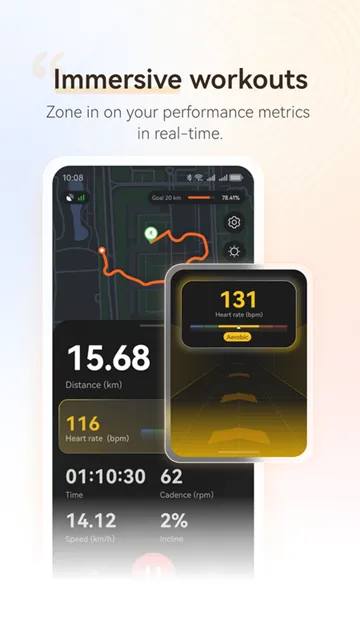
- Real-time Data: During a workout, the app displays your pace, duration, and intensity zones.
GPS Route Mapping
You do not always need a watch with built-in GPS to map your runs. Huawei Health can utilize your Android phone’s GPS to record your path.
- Visual Maps: After your session, the app generates a color-coded map. This map shows where you sped up or slowed down.
- Accuracy: By using the phone’s GPS, the app provides precise distance measurements and elevation data.
Heart Rate and SpO2 Monitoring
When paired with a compatible Huawei watch or band, the app becomes a powerful health monitor.
- 24/7 Heart Rate: The app creates a graph of your heart rate throughout the day. It alerts you if your pulse stays too high or too low while resting.
- SpO2 Tracking: It measures blood oxygen saturation. This is helpful for checking recovery or monitoring health at high altitudes.
Advanced Sleep Tracking
Huawei uses TruSleep™ technology to analyze your rest. It doesn’t just track how long you sleep, but how well you sleep.
- Sleep Phases: The app identifies deep sleep, light sleep, and REM cycles.
- Nap Detection: Unlike many competitors, Huawei Health accurately records short afternoon naps.
- Quality Scores: Every morning, you receive a score out of 100 with tips to improve your habits.
Stress and Wellness Tools
Health is more than just physical movement. The app includes features to help you manage mental pressure.
- Stress Monitoring: The app uses heart rate variability (HRV) to estimate your stress levels.
- Breathing Exercises: If your stress is high, you can follow guided breathing prompts. These animations help you inhale and exhale at a rhythm that calms the nervous system.
Menstrual Cycle Tracking
Users can manage their reproductive health directly within the app.
- Predictions: Enter your data to receive cycle predictions and fertile window alerts.
- Symptom Logging: You can record physical symptoms or mood changes to see patterns over time.
Professional Training Plans
If you want to run a 5K or a full marathon, Huawei Health acts as a personal coach.
- Custom Programs: The app creates plans based on your current fitness level.
- Dynamic Adjustments: If you miss a day or perform better than expected, the plan updates automatically.
- Skill Levels: It offers programs ranging from “Beginner” to “Professional Athlete.”
Elevate Your Wellness with Huawei Health for Android in 2026
Huawei Health has evolved into a powerhouse for Android users. It bridges the gap between sophisticated data and daily motivation. Whether you use a WATCH GT or a Band series device, this app serves as your ultimate wellness command center.
Here is a breakdown of the standout features making waves this year.
Master Your Daily Movement
The app simplifies fitness through visual goals. You do not need to be a pro athlete to see progress.
- Activity Rings: These three colorful rings track your Move, Exercise, and Stand goals. They provide a quick snapshot of your physical activity throughout the day.
- Health Clovers: This unique system focuses on holistic habits. It reminds you to drink water, smile, and hit your step count. Completing these tasks “blooms” your clover, turning wellness into a rewarding game.
Get Creative with RouteDraw
Running no longer feels like a chore thanks to RouteDraw. This feature adds a creative spark to your outdoor cardio.
- GPS Art: You can plan your running or walking paths to “draw” specific shapes or patterns on the map.
- Social Sharing: Once you finish your masterpiece, the app generates a high-quality map image. You can share your GPS art directly with friends or on social media to inspire others.
Advanced Health Monitoring
The 2026 update brings deeper insights into how your body functions. The app uses powerful sensors to give you a 24/7 health overview.
Precision Sleep Tracking
TruSleep 4.0 offers industry-leading analysis of your rest. It detects light, deep, and REM sleep cycles with high accuracy. Furthermore, it tracks short power naps and provides tailored advice to help you wake up feeling refreshed.
Continuous Vital Signs
- SpO2 Monitoring: The app tracks your blood oxygen levels around the clock.
- Stress Management: It measures heart rate variability to determine your stress levels. If you are too tense, the app suggests breathing exercises to calm you down.
Reproductive Health
The Cycle Calendar offers a streamlined way to track reproductive health. It predicts periods and fertile windows based on your physiological data, such as skin temperature and heart rate.
Your Central Device Hub
Huawei Health acts as the brain for your wearables. It is the primary tool for managing the WATCH GT and Band series.
- Watch Face Gallery: You can browse and install thousands of custom designs to match your style.
- Seamless Sync: The app instantly pushes your workout data and notifications between your phone and your wrist.
- Firmware Updates: Keep your devices running smoothly with one-tap software updates.
By using these tools, you take full control of your fitness journey. Huawei Health makes it easier than ever to stay informed, active, and inspired.
A Guide to Huawei Health for Android
The Huawei Health app serves as a powerful command center for your fitness journey. If you use an Android device, this app transforms raw sensor data into actionable health insights. It tracks your movement, monitors your sleep, and helps you understand your body’s unique patterns.
Your Health at a Glance: The Dashboard Overview
The dashboard acts as your personal health scoreboard. It organizes complex data into simple, visual summaries so you can track your progress instantly.
- Daily Snapshots: Check your step count, calories burned, and active minutes. The interface uses bright rings to show how close you are to your daily goals.
- Weekly Trends: Look at the weekly view to spot patterns. You might notice you are less active on Tuesdays or sleep better on weekends.
- Monthly Analysis: This long-term view highlights your consistency. It helps you see the big picture of your cardiovascular health and weight management over time.
Managing Your Records: Historical Data Export
Data is most valuable when you can control it. Huawei Health allows you to keep a permanent record of your achievements through data exports.
- Privacy First: You can generate a summary of your personal health information directly within the privacy settings.
- File Formats: The app typically exports data in formats like Excel or PDF.
- Long-term Storage: Use these exports to share information with a doctor or to keep a backup of your fitness milestones outside of the app.
Connecting the Dots: App Integrations
Connectivity expands the power of your data. While Huawei uses a secure ecosystem, you can still link your stats with other popular platforms.
- Strava Integration: You can sync your running and cycling routes. This allows you to compete on global leaderboards and share paths with the Strava community.
- MyFitnessPal Connectivity: Linking these apps helps you balance calories consumed with calories burned. However, availability may vary based on your specific Android version and region.
- Health Sync: Many Android users use third-party “bridge” apps to move data between Huawei Health and Google Fit seamlessly.
Understanding the Numbers: Huawei’s Health Metrics
Huawei uses proprietary algorithms to calculate specific scores. These metrics go beyond simple step counting to measure your actual physical state.
The Health Score
This is a single number that represents your overall physical condition. It considers your sleep quality, stress levels, and activity frequency. A higher score indicates a well-balanced lifestyle.
Key Performance Metrics
- VO2 Max: This measures your blood’s oxygen capacity. It tells you how fit your heart and lungs truly are during intense exercise.
- Stress Monitoring: The app measures heart rate variability (HRV). It alerts you when your body shows signs of high stress, suggesting breathing exercises to help you relax.
- Sleep Stages: Instead of just tracking time, the app identifies Deep, Light, and REM sleep. It provides a “Sleep Score” to help you improve your rest quality.
Using these insights, you can move away from guessing and start making informed decisions about your daily habits.
Connecting Huawei Health to the Android Ecosystem
Huawei fitness trackers offer great hardware. However, many users struggle to move their data into the broader Android ecosystem. If you use a Huawei watch, you likely want your steps and sleep data in Google apps or third-party platforms.
Since the tech landscape is changing, you must update how you sync your devices. Recent shifts in Android software mean old methods are disappearing. This guide helps you navigate these changes to keep your fitness data safe and visible.
The Health Connect Transition
Google is making a major change to how Android handles health data. The old Google Fit API is being retired in 2026. This means apps will no longer talk to Google Fit the same way they did before.
To solve this, Google introduced Health Connect. This is a central hub built into the Android system. It allows different fitness apps to share data securely in one place.
How to Sync with Health Connect
Follow these steps to move your Huawei data to the new Google system:
- Install Health Connect: If you have Android 13 or older, download the Health Connect app from the Play Store. If you have Android 14 or newer, it is already in your settings.
- Enable Huawei Sharing: Open the Huawei Health app. Go to the “Me” tab and find Privacy Management. Select Health Connect and toggle the switch to share your data.
- Link Google Fit: Open Google Fit and go to settings. Turn on the option to “Sync Fit with Health Connect.”
- Check Permissions: Ensure you allow both apps to “Read” and “Write” data. This ensures your steps and workouts flow between them smoothly.
Connecting to Third-Party Apps
Sometimes, Health Connect does not support every app you use. If you want to send your Huawei workouts to Strava or MyFitnessPal, you might need an extra tool.
Using Health Sync
Many users rely on an app called Health Sync. This tool acts as a bridge between platforms that do not talk to each other directly.
- Strava Integration: Health Sync can pull GPS data from Huawei and push it directly to Strava.
- Nutrition Tracking: You can sync your weight and activity data to MyFitnessPal to help manage your calories.
- Reliability: This app runs in the background. It automatically updates your data several times a day.
By using these modern syncing methods, you can enjoy your Huawei hardware without losing the benefits of the Android ecosystem. Keep your apps updated to ensure the best performance as the 2026 deadline approaches.
Huawei Health for Android: Tips for Best Results
Optimizing Huawei Health on your Android phone ensures you never miss a step or a heartbeat. Follow these tips to get the most out of your fitness tracking.
Keep the App Running in the Background
Android systems often close background apps to save battery. This can stop your watch from syncing. To prevent this, you must adjust your battery optimization settings.
- Lock the App: Open your recent apps screen. Swipe down on the Huawei Health card to lock it. A small lock icon should appear.
- Disable Optimization: Go to your phone Settings. Find Apps and select Huawei Health. Tap on Battery and choose Don’t Optimize or Unrestricted.
- Manual Launch: Some phones have an “App Launch” setting. Set Huawei Health to Manage Manually. Ensure “Run in background” is toggled on.
Enable Auto-Detection of Workouts
You don’t always have to start a workout manually. Your device can recognize when you begin moving.
- Open the Huawei Health app.
- Go to the Devices tab and select your wearable.
- Navigate to Workout settings.
- Toggle on Auto-detect workouts.
The device will now vibrate when it senses a brisk walk or run. You simply tap the screen to confirm and start recording.
Use Voice Guidance for Running and Walking
Voice guidance helps you stay focused without looking at your phone. It provides updates on your pace, distance, and heart rate.
- Start a Workout: Open the app and go to the Exercise tab.
- Access Settings: Choose “Outdoor run” or “Walking.” Tap the Settings icon (gear shape) in the corner.
- Turn on Voice: Enable the Voice broadcast switch. You can also set the frequency of these updates, such as every kilometer.
Improve Sync Frequency and Fix Drops
Connection drops usually happen due to distance or software restrictions. Use these steps to maintain a steady sync.
- Grant Permissions: Ensure “Location” is set to Allow all the time. Bluetooth requires location data to stay connected on Android.
- Check Distance: Keep your phone within 10 meters of your wearable. Walls and large metal objects can weaken the signal.
- Manual Sync: If data seems old, open the app and swipe down on the home screen. This forces a fresh sync with your device.
- Toggle Bluetooth: If the connection fails, turn your phone’s Bluetooth off and back on. Restarting your wearable often fixes persistent pairing issues.
Understanding Huawei Health Privacy and Data Storage
Managing your health data is a vital part of using any fitness app. Huawei Health for Android offers various tools to track your steps, heart rate, and sleep. However, you must understand how the app handles your personal information. This guide explains where your data goes and how you can control it.
Where Is Your Health Data Stored?
Huawei Health uses a hybrid approach to save your information. This means your data exists in two primary places: locally on your phone and in the Huawei Cloud.
Local Storage on Your Device
When you first record a workout or sync your watch, the data stays on your Android phone. This allows you to view your stats quickly even without an internet connection. Local storage is convenient, but if you lose your phone or delete the app without a backup, this data could be lost forever.
Huawei Cloud Synchronization
If you sign in with a Huawei ID, the app syncs your records to the Huawei Cloud. This server-based storage serves several purposes:
- Data Backup: It keeps your history safe if you switch to a new phone.
- Multi-Device Sync: You can see your data on a tablet or a second phone.
- Long-term Analysis: Cloud servers process complex health trends over months or years.
Huawei uses encryption to protect this data. However, since the servers may be located in different regions depending on your account settings, you should check the specific privacy statement in your app.
How to Delete or Export Your Data
You have the right to manage your digital footprint. Huawei provides specific settings to remove your records or take them with you.
Deleting Your Information
If you want to start fresh or stop using the service, you can delete your data. Use these steps:
- Open the Huawei Health app.
- Tap the Me tab in the bottom right corner.
- Go to Privacy management.
- Select Clear all personal data from cloud.
Note: This action is permanent. Once you delete data from the cloud, it cannot be recovered.
Exporting Your Data
You might want to move your fitness history to another app or keep a personal copy. Huawei allows you to request a download of your data:
- Visit the Huawei Privacy Center via your account settings.
- Select Request your data.
- Choose Health from the list of categories.
- Huawei will prepare a file (often in JSON format) and notify you when it is ready for download.
Permissions to Watch Closely
Android apps require specific permissions to function. Some of these are essential for fitness tracking, while others impact your privacy more significantly.
Always-On Location for GPS
The most critical permission for Huawei Health is Location. For the app to track your runs or walks accurately, it needs access to your GPS.
- Why it asks for “Always Allow”: Huawei Health often requests “Allow all the time” access. This is because the app needs to track your movement even when your phone screen is off or the app is in the background.
- Privacy Impact: Continuous location tracking can create a detailed map of your daily routines. If you are uncomfortable with this, you can set the permission to “Allow only while using the app,” but your workout routes might be cut short if the app closes.
Other Important Permissions
- Physical Activity: This allows the app to count steps using your phone’s built-in sensors.
- Nearby Devices: This is necessary to find and connect to your Huawei smartwatch or heart rate monitor via Bluetooth.
- Storage/Media: The app needs this to save workout posters or local backup files.
Best Practices for Privacy
To stay safe while staying fit, follow these simple tips:
- Review Permissions Regularly: Go to your Android settings and check what Huawei Health can access.
- Update the App: Keep the app updated to ensure you have the latest security patches.
- Use Strong Passwords: Protect your Huawei ID with a unique password and two-factor authentication.
- Limit Sharing: Check the “Data sharing and authorization” menu to see if other third-party apps are reading your health stats.
By understanding these settings, you can enjoy your fitness journey while keeping your personal data secure.
Frequently Asked Questions About Huawei Health for Android
Why is my Huawei watch not connecting to my Android phone?
Connection issues usually happen because of permission settings or outdated software. Follow these steps to fix the problem:
- Update HMS Core: Most non-Huawei Android phones need the “HMS Core” app to communicate with the watch. Download it from the Huawei AppGallery.
- Check Bluetooth: Ensure Bluetooth is active on both your phone and your watch.
- Grant Permissions: Go to your phone’s Settings > Apps. Select Huawei Health and ensure “Location” and “Nearby Devices” permissions are set to “Always Allow.”
- Restart Devices: Turn your phone and watch off and back on again to refresh the connection.
Does Huawei Health work with all Android brands?
Yes, the app works with most modern Android devices. However, your phone must meet certain requirements for the best experience.
- Your device should run Android 6.0 or later.
- You need at least 2GB of RAM for the app to run smoothly.
- You must install the latest version of the app via the official APK to ensure compatibility with new wearables.
How do I sync my data with other fitness apps?
Many users want to share their Huawei Health data with apps like Google Fit. While the app does not always sync directly, you can use a bridge app.
- Search for a “Health Sync” app on the Google Play Store.
- Install the sync app and select Huawei Health as the source.
- Choose your destination app, such as Google Fit or Strava.
- Follow the prompts to link your accounts.
Why does the app stop tracking in the background?
Android phones often close background apps to save battery life. This can stop your step counting or heart rate monitoring. To prevent this, you need to change your battery settings.
- Go to your phone Settings.
- Tap on Battery or App Management.
- Find Huawei Health and select Battery Optimization.
- Change the setting to “Don’t Optimize” or “Manual Management.”
- Ensure “Auto-launch” and “Run in background” are toggled on.
Is my data safe on the Huawei Health app?
Huawei uses encryption to protect your personal information. You can manage your privacy settings directly within the app.
- Open the app and tap on the “Me” tab.
- Select Privacy Management.
- Here, you can choose which data to sync to the cloud or delete your history entirely.
- Always use a strong password for your Huawei ID to keep your account secure.
Can I connect multiple devices at once?
Yes, you can. The app supports several wearables. For example, a watch and a scale. Just add each one from the “Devices” menu.
Does Huawei Health track sleep automatically?
Yes, it does. Wear your device to bed. The app will detect your sleep stages. You will see deep sleep, light sleep, and wake-up times each morning.